
 Start Your Free Trial
Did you know you can use Vaula directly through an AI assistant?
For example, you can ask AI to show your open deals, find a customer’s contact details or log a phone call in Vaula. You don’t need to open your CRM for every task.
No programming skills are required to set up the connection, as long as your AI service supports custom MCP connections.
Before you get started
You’ll need a Vaula user account and an AI service that allows you to add custom connections.
You’ll also need your company’s Vaula MCP address. It follows this format:
Replace XXXXX with your company’s Vaula identifier. For example: https://YOURCOMPANY.vaula.pro/api/mcp
Copy your MCP address. You’ll need it in the next step.
Choose your AI service below and follow the instructions.
Connect Vaula to Claude
- Open Claude and sign in.
- Go to Customize → Connectors.
- Click Add, select Custom, then Web.
- Enter Vaula CRM as the connection name.
- Paste your company’s Vaula MCP address.
- Click Continue and follow the sign-in instructions.
- Sign in to Vaula and authorize the connection.
- Open a Claude conversation and check the Connectors section in the + menu to make sure Vaula is enabled.
You’re all set! You can now ask Claude to retrieve information from Vaula.
Claude also supports custom MCP connections on its free plan, although some features and connection limits may vary depending on your subscription.
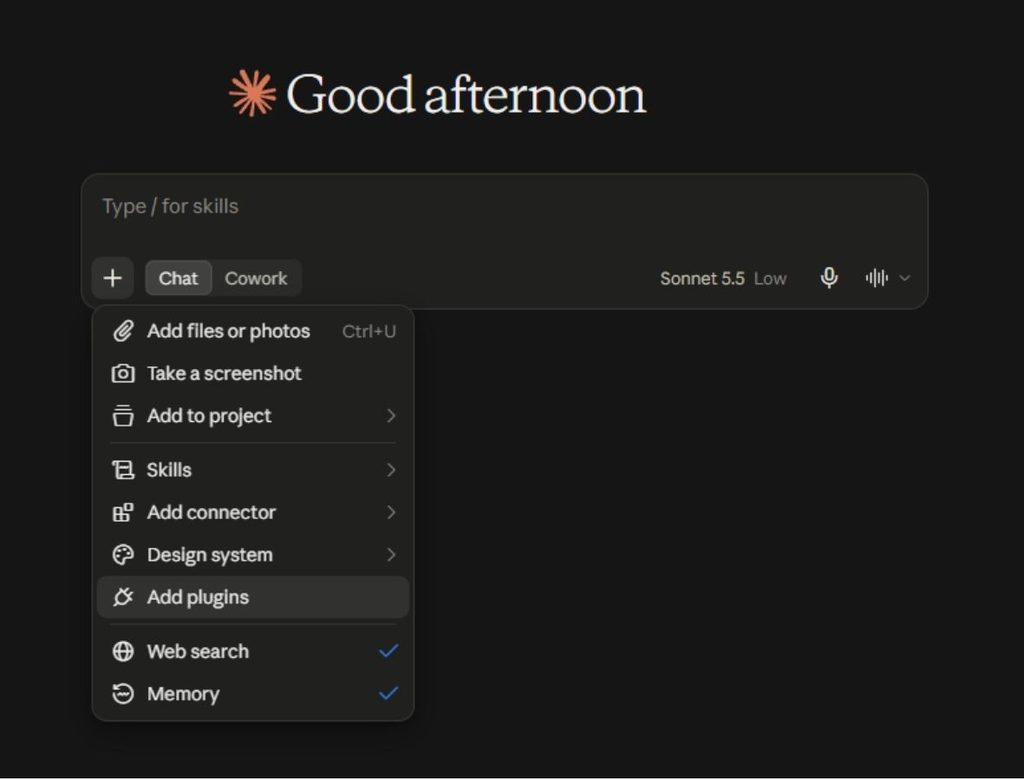
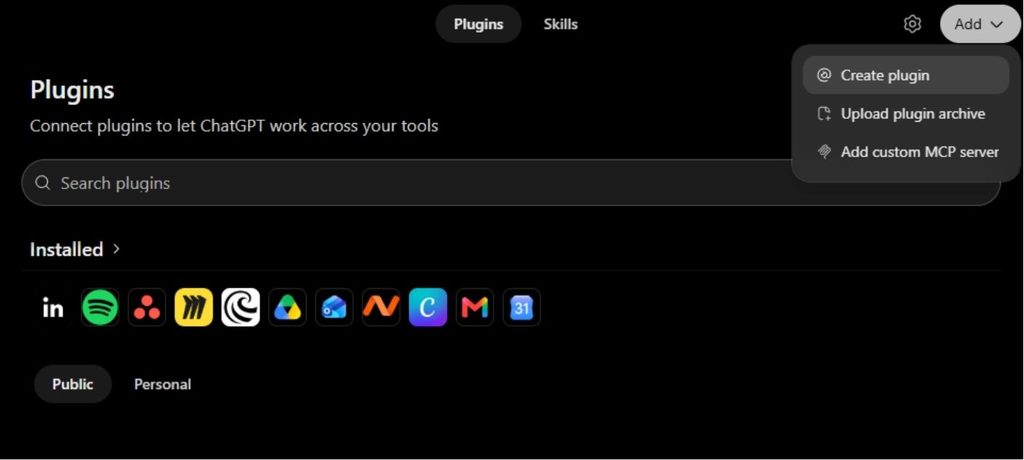
Connect Vaula to ChatGPT
The availability of MCP connections in ChatGPT depends on your subscription and your organization’s settings.
- Open ChatGPT.
- Go to Settings → Apps.
- If Developer mode is available, enable it. On a business account, this may require approval from your administrator.
- Select Create app, or the equivalent option for creating a new app.
- Enter Vaula CRM as the name.
- Add your company’s Vaula MCP address.
- Select the required authentication method and sign in to Vaula.
- Check that ChatGPT detects Vaula’s tools and complete the setup.
- Enable Vaula in your ChatGPT conversation.
Note: Not all ChatGPT plans support custom MCP connections. Creating and modifying CRM records may require a supported business or organization plan. If you can’t find the settings mentioned above, check which features are included in your subscription.
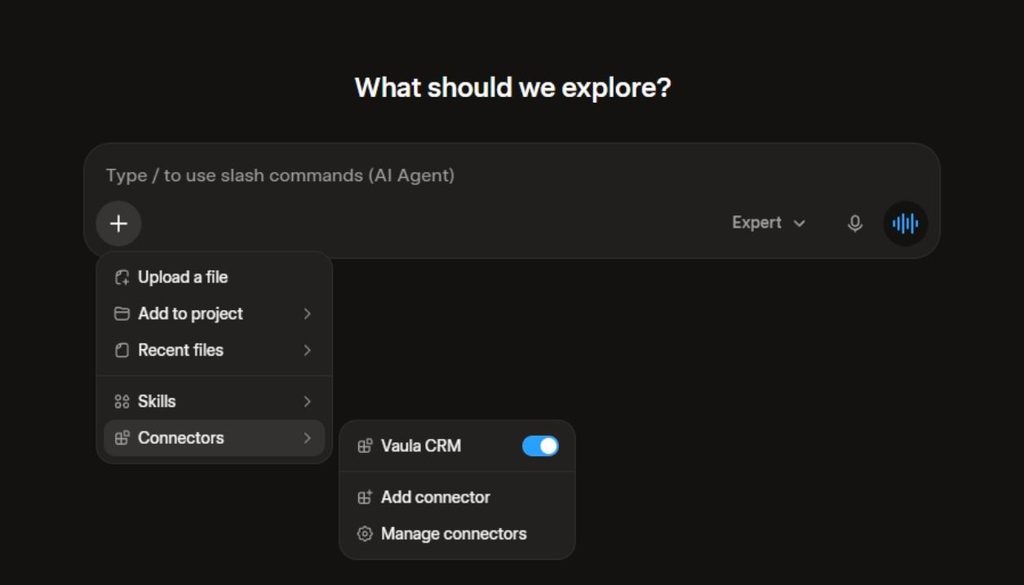
Connect Vaula to Grok
- Open Grok Connectors.
- Select New Connector.
- Select Custom.
- Enter Vaula CRM as the name.
- Paste your company’s Vaula MCP address.
- Sign in to Vaula and authorize the connection.
- Make sure Vaula’s tools are visible in Grok.
You’re all set! You can now try using Vaula in a Grok conversation.
If you’re using Grok through a company-managed account, your administrator may need to allow custom connections first.
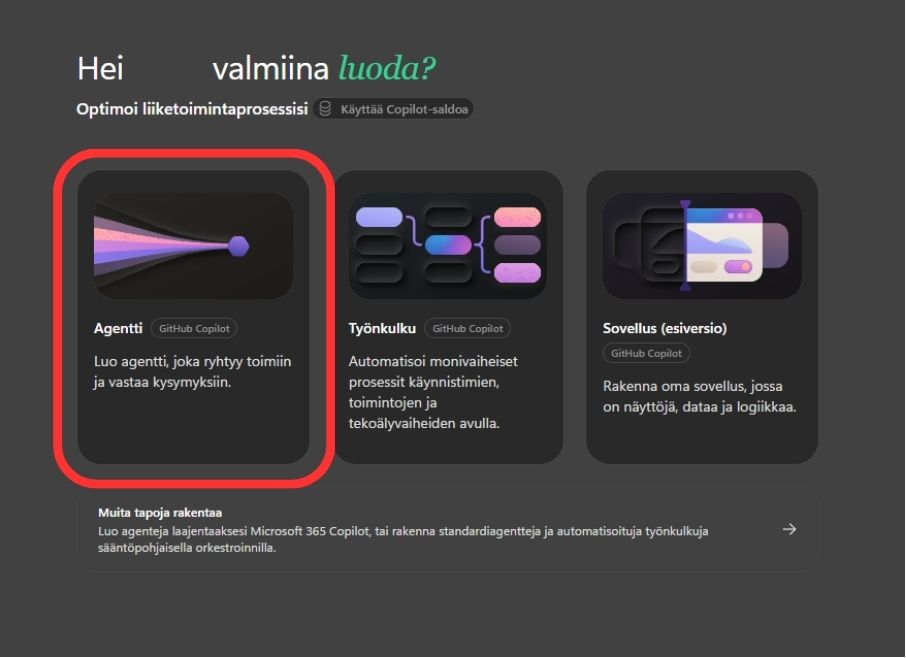
Connect Vaula to Microsoft Copilot
MConnecting Vaula to Microsoft Copilot is done through Copilot Studio. This option is particularly useful for businesses building their own AI agents.
- Open Copilot Studio.
- Create a new agent or open an existing one.
- Go to Tools.
- Select Add a tool → New tool → Model Context Protocol.
- Enter Vaula CRM as the connection name.
- Add a description, such as Retrieves and updates customer, deal and task information in Vaula CRM.
- Paste your company’s Vaula MCP address.
- Select OAuth 2.0 as the authentication method and Dynamic discovery, if available.
- Create the connection and sign in to Vaula.
- Add Vaula’s tools to your agent and test the connection.
Setting up Copilot Studio may require assistance from your company’s IT administrator. The connection also depends on compatibility between Microsoft’s and Vaula’s authentication settings.
Test your Vaula connection
Once you’ve connected Vaula to your AI service, start with a simple request.
Try this first:
“Show me my open tasks in Vaula.”
If the AI assistant retrieves the correct tasks, the connection is working for reading information.
You can also try these requests:
Customer information
“Find Example Company in Vaula and show me its contacts.”
Sales pipeline
“Show me all my open deals and their current pipeline stages.”
Creating a new lead
“Create a new lead for Example Company in Vaula.”
Logging a phone call
“Log a call in Vaula saying that I spoke with Matt Smith today and we agreed to schedule a meeting next week.”
Creating and updating records requires your AI service to support these actions.
What if the connection doesn’t work?
The AI assistant can’t find Vaula
- Make sure the connection has been added and enabled in the conversation you’re using.
Sign-in fails
- Check that your MCP address is correct, then try signing in again.
The AI assistant can read data but can’t make changes
- Check your AI service’s subscription and permissions. Not all services support editing CRM data on every plan.
A customer or deal can’t be found
- Open Vaula and check that the record exists and that you have permission to access it.
Is the connection secure?
Vaula’s MCP connection uses individual user authentication. You don’t need to give your Vaula password directly to the AI assistant.
The connection operates according to the permissions available to your user account. However, remember that your AI service processes the information shared with it according to its own privacy terms and policies.
For business use, make sure your organization has approved the AI service you’re connecting to Vaula.
Vaula API and MCP documentation
Want to learn more about Vaula’s APIs and the technical implementation of MCP?
Our official developer documentation provides more information about the available APIs, supported functionality and building integrations with Vaula.
Developer documentation: https://developers.vaula.pro/api/docs
Need help?
If you’re having trouble connecting Vaula to your AI service, contact Vaula Support.
Let us know which AI service you’re using, where the setup fails and what error message you’re seeing. If possible, include the error message in your email.